
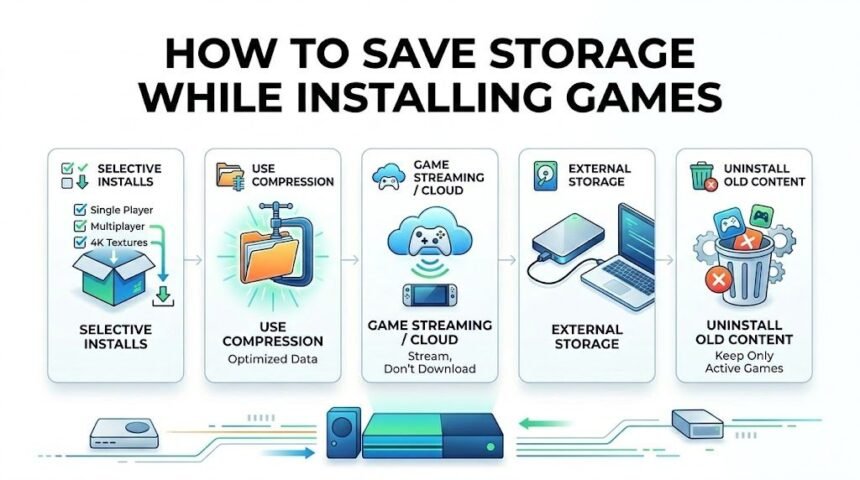
Modern games are larger than ever before. A single AAA title can easily consume 80GB to 150GB of storage, and frequent updates push that number even higher. If you are constantly deleting files to install a new game, you are not alone.
Why Modern Games Require So Much Space
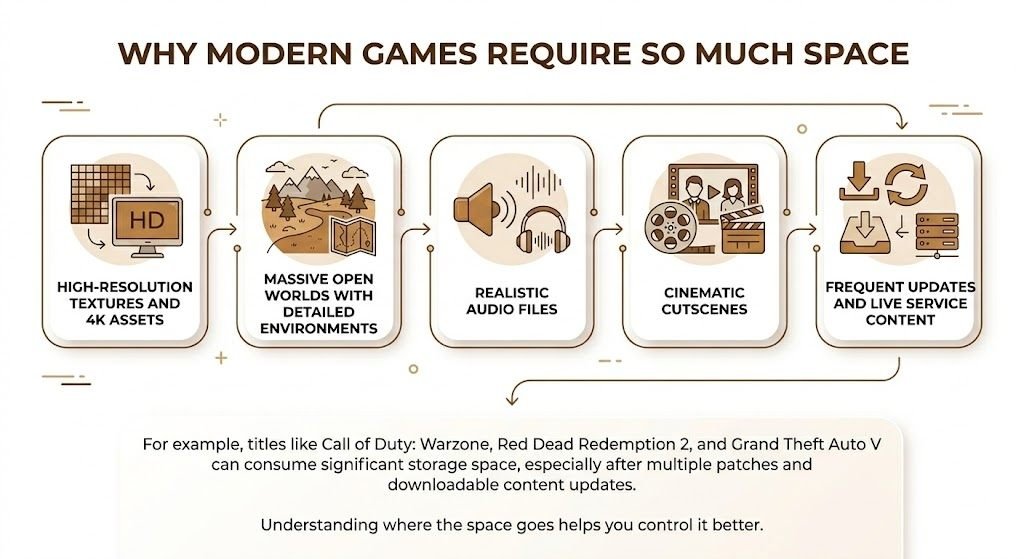
Game sizes have grown due to several factors:
- High-resolution textures and 4K assets
- Massive open worlds with detailed environments
- Realistic audio files
- Cinematic cutscenes
- Frequent updates and live service content
For example, titles like Call of Duty: Warzone, Red Dead Redemption 2, and Grand Theft Auto V can consume significant storage space, especially after multiple patches and downloadable content updates.
Understanding where the space goes helps you control it better.
Use Custom Installation Options
One of the most powerful ways to save storage is by choosing exactly what gets installed.
Install Only Essential Components
Many modern games allow selective installation, such as:
- Multiplayer only
- Campaign only
- Co op mode only
- Specific language packs
- Optional high-resolution textures
For instance, certain versions of Call of Duty: Modern Warfare II let you install multiplayer separately from campaign mode. This can save dozens of gigabytes instantly.
Always choose custom installation instead of the default full install when available.
Skip High Resolution Texture Packs
Ultra and 4K texture packs dramatically increase storage size.
These are mainly useful if you have:
- A powerful graphics card
- A 1440p or 4K monitor
If you play at 1080p or lower, the difference is often minimal, but the storage cost is huge. Skipping texture packs can save 10-40GB, depending on the game.
Manage Game Libraries Smartly
Create Multiple Library Locations
Platforms like Steam and Epic Games Store allow you to create multiple install folders.
You can:
- Keep competitive games on SSD
- Move story-based games to HDD
- The store rarely played games externally
This keeps your main drive clean and optimized.
Install Games on External Drives
If your internal storage is limited:
- Use an external SSD for fast performance
- Use an external HDD for large single-player games
External SSDs offer near-internal speeds and are perfect for laptops with limited space.
This does not reduce file size, but it prevents your primary drive from filling up.
Enable File Compression Carefully
Use Windows Built-In Compression
Right-click a game folder, select Properties, and enable compression.
Best for:
- Indie games
- Older games
- Games with many small files
Avoid compressing large AAA games with heavy assets, as it may slightly increase loading times.
Remove Unused DLC and Add-ons
Many games automatically install all available DLCs.
Check your launcher and uninstall:
- Cosmetic packs
- Extra language packs
- Unused expansions
- Bonus content
This is especially useful for large titles, where DLC can add 10GB to 30 GB of space.
Clean Shader Cache and Temporary Files
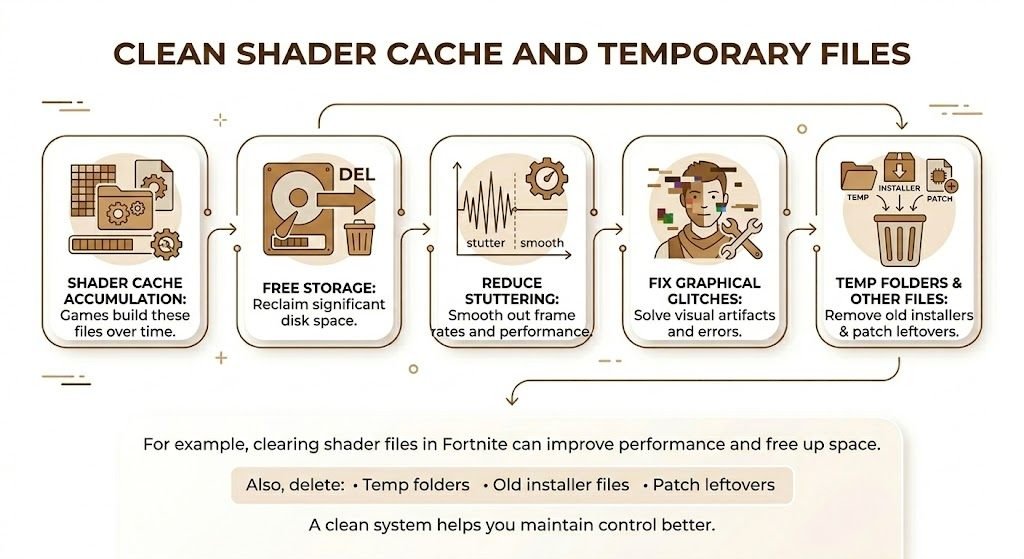
Games generate temporary shader files over time.
Clearing the shader cache can:
- Free storage
- Reduce stuttering
- Fix graphical glitches
For example, clearing shader files in Fortnite can improve performance and free up space.
Also delete:
- Temp folders
- Old installer files
- Patch leftovers
Avoid Installing Too Many Games at Once
A smart rotation system helps:
- Install one main game
- Finish or pause it
- Uninstall before installing the next one
Keeping 10 large games installed at once is the fastest way to run out of storage.
Use Cloud Saves Instead of Local Backups
Most modern platforms offer cloud save support, including:
- Steam
- Epic Games Store
- Xbox Game Pass
Enable cloud saves and delete old manual save backups stored on your drive.
Remove Duplicate Game Installations
Sometimes users accidentally install:
- The same game twice in different folders
- Beta and full versions
- Old builds alongside updated ones
Check your drives carefully and remove duplicates.
Archive Rarely Played Games Instead of Deleting
If your internet speed is slow, re-downloading massive games can be frustrating.
Instead:
- Move the game folder to external storage
- Use built-in backup features
- Compress and archive old installations
This allows quick restoration later without a full re-download.
Manage Mods Properly
Mods can dramatically increase storage usage.
Large modded versions of games like The Elder Scrolls V: Skyrim can double or triple file size.
To control mod storage:
- Delete unused mods
- Avoid installing massive texture overhauls
- Keep only active mod profiles
Regularly review your mod folder.
Delete Game Recordings and Screenshots
Game clips and screenshots accumulate quickly.
Check folders for:
- Recorded gameplay videos
- High-resolution screenshots
- Clip highlights
Competitive games like Valorant can generate large recording files if automatic capture is enabled.
Delete unnecessary recordings regularly.
Disable Automatic Updates for Rarely Played Games
Some launchers auto-update every installed game.
If you rarely play a title:
- Disable automatic updates
- Uninstall until needed
Live service games update frequently and consume additional storage over time.
Use Disk Cleanup Tools Regularly
Windows tools can free hidden storage:
- Disk Cleanup
- Storage Sense
- Temporary file removal
These small cleanups add up over time and prevent storage warnings.
Upgrade Storage Smartly for Long-Term Freedom
If you constantly struggle with storage, upgrading is a smart investment.
Best Upgrade Options
- Upgrade from 256GB to 1TB SSD
- Add a secondary internal SSD
- Use high high-capacity external SSD
An SSD upgrade improves both speed and storage capacity, making game management easier.
Avoid Unsafe Repacked Versions
Repacked versions may appear smaller, but often:
- Require a large temporary extraction space
- Cause installation errors
- Contain security risks
Official versions from trusted platforms are safer and often better optimized.
Plan Your Game Library Strategy
A simple storage strategy prevents constant cleanup:
- Keep 2 to 3 main games installed
- Archive older games externally
- Skip unnecessary extras
- Clean system monthly
Treat your storage like a limited resource, not unlimited space.
Final Thoughts
Saving storage while installing games is about smart management, not sacrificing fun.
Choose custom installs, skip ultra texture packs, remove unused DLC, manage mods carefully, and clean temporary files regularly. If storage is a constant issue, upgrading to a larger SSD is one of the best long-term solutions.
With proper planning and smart decisions, you can enjoy more games without constantly worrying about running out of space.